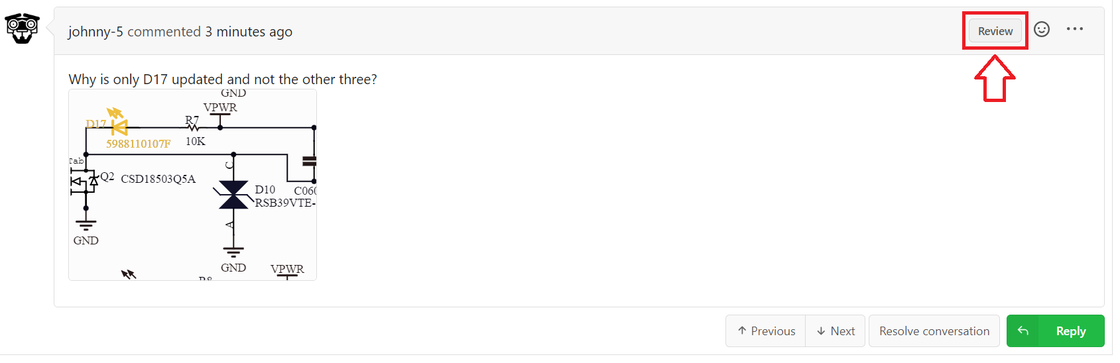
Create snippets of schematics and PCB layouts for comments
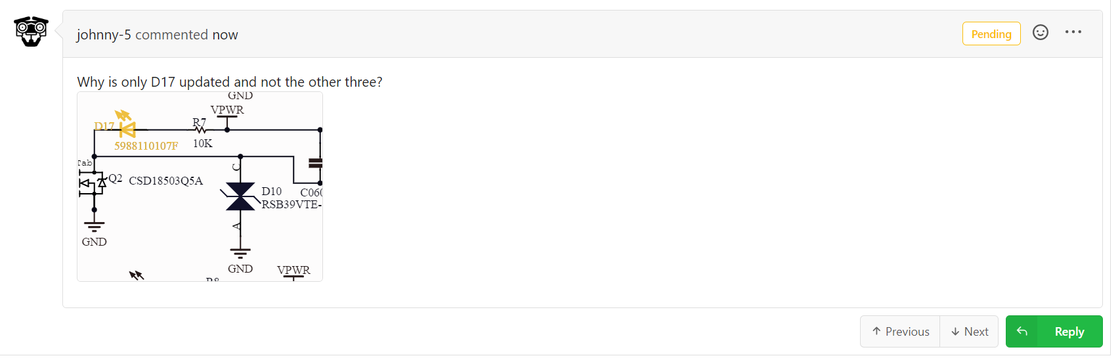
You can now comment with an image snippet from schematics and PCB Layouts so people can know exactly which section you're commenting on.
Start by using the snippet tool on a schematic or PCB layout.
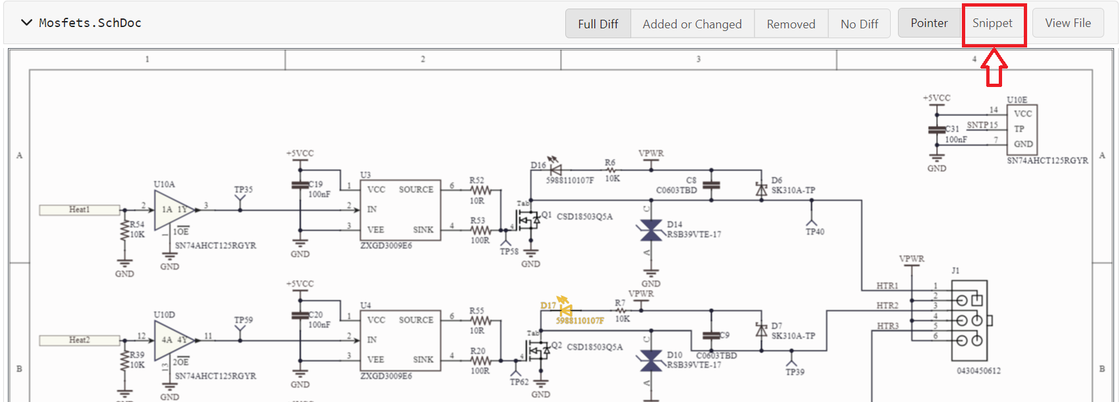
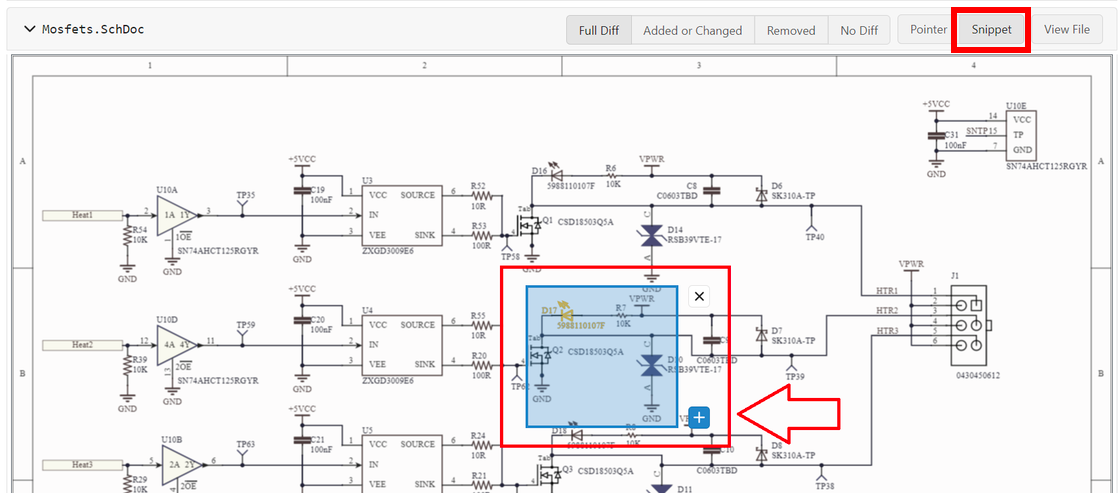
Select the area of the document to create a snippet.
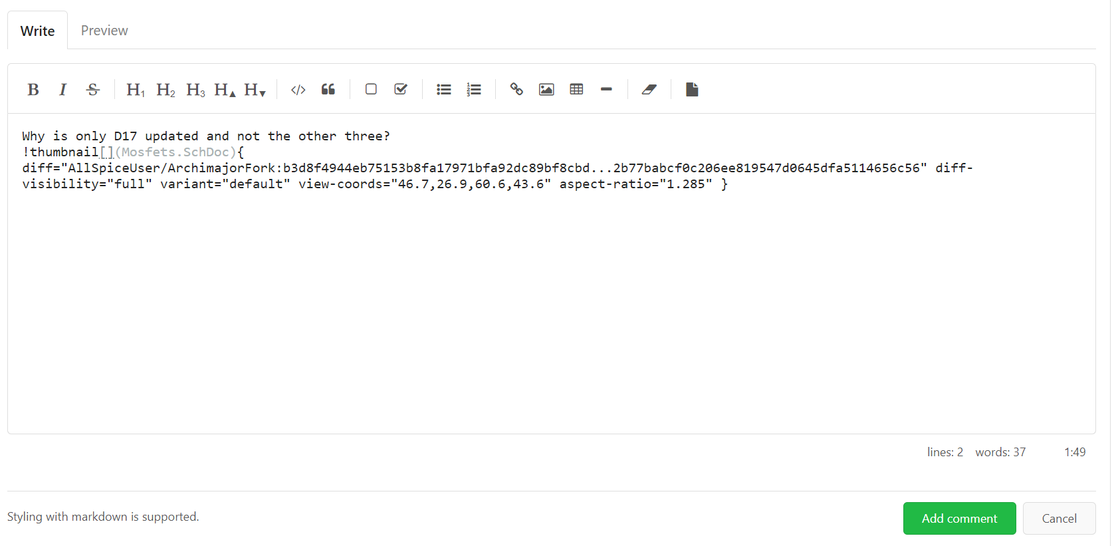
Type in a well thought out comment.
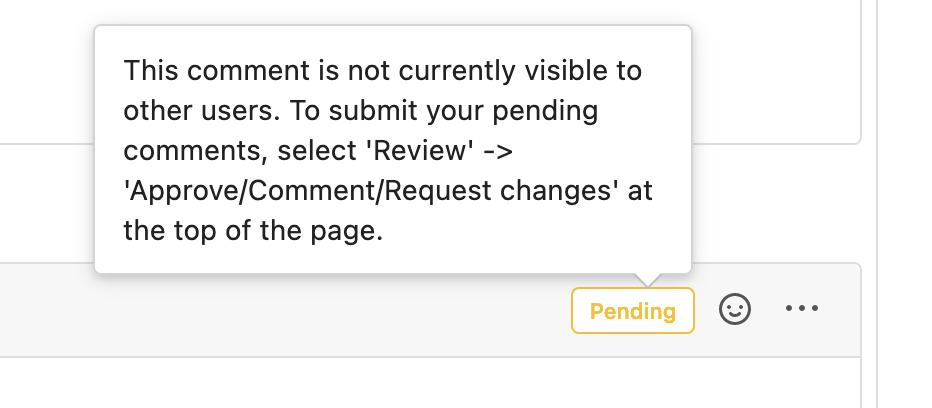
We’ve added a tooltip to the Pending status to help you know that you have one more step to complete before your comment is visible to other users. The tooltip won’t show up until you refresh the page and we’re working on eliminating that step.
When you’re performing a Design Review and viewing the +/- Files Changed, you can create a snippet to comment on specific areas of the visual diff.
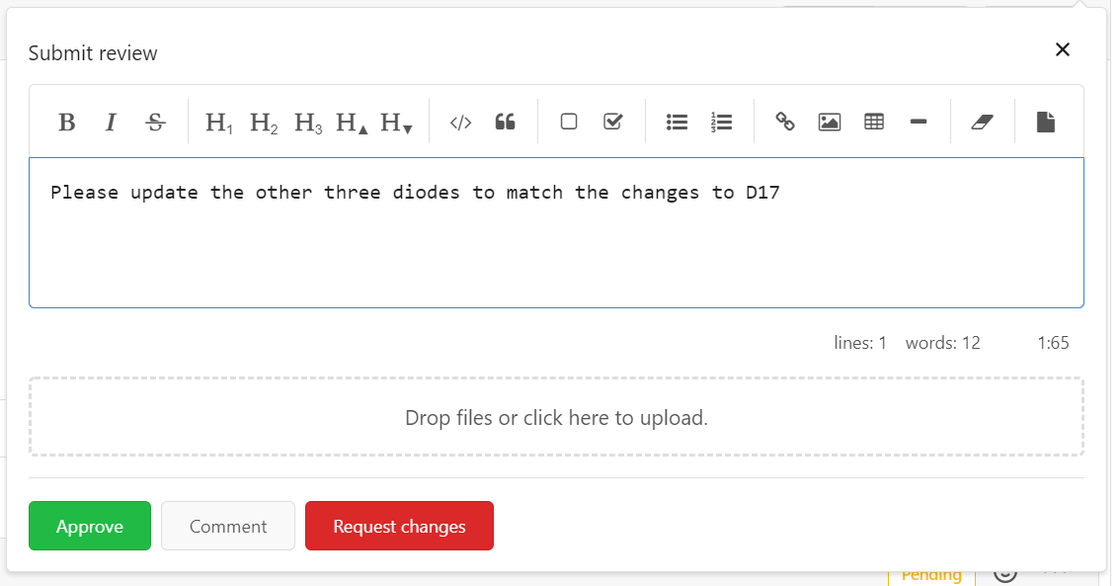
Your comment isn’t viewable by others until you select Approve, Comment, or Request changes. The system doesn’t know your intent, so you have to pick one.
Here the comment is pending and will not be visible to others.
This is an example of the tooltip. It's a helpful reminder of why the comment is pending, and what to do next.
You have to add a meaningful comment and select Approve, Comment, or Request changes for others to see your comment.
When you've done it correctly, the label "Pending" becomes "Review". Now your comments are visible to others!